|
|
Sign with UAE PASS
Signing ProcedureYou received a DocuSign email prompting you to review and sign documents. The sender of the envelope requires that you use UAE Pass to authenticate and sign your documents.
|
||||||||
|
When UAEPASS finishes processing your signature, you get a notification that the signing is complete. You can log in to DocuSign to save a copy of the document to your DocuSign account. |
|||||||||
|
|
Sending Procedure1. Create envelope by clicking SEND
AN ENVELOPE 2. Add the Recipient Name and Email
ID 3. Select Signature Type as ‘UAE
Pass’. The email id of the recipient should match UAE PASS registered
email (Please confirm the recipient email id registered with UAE Pass before
sending) 4. If there are multiple recipients, Select the SIGNING ORDER Checkbox 5.
Review document, add signature fields, and Click SEND |
||||||||
|
|
Common FAQs1. Signer
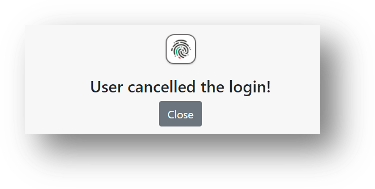
received the message "User cancelled login." What might be the
cause of this notification?
The signer may have accidentally clicked the
cancel button. In this scenario, please instruct the signer to click the
"Continue" button in the DocuSign window and attempt the UAE PASS signing
process again. 2. Signer received the message “You are not
authorized to sign" What could be the reason? 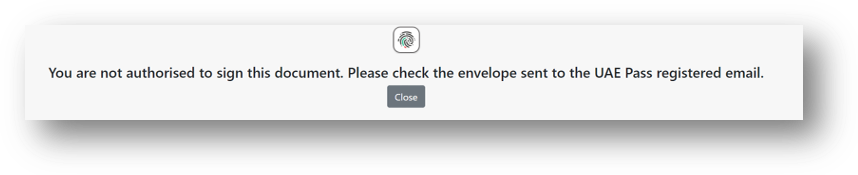
This message appears when the sender sends an envelope to a recipient email address that is not registered with UAE Pass. 3. Signer received the message “upgrade your certificate" How to upgrade? 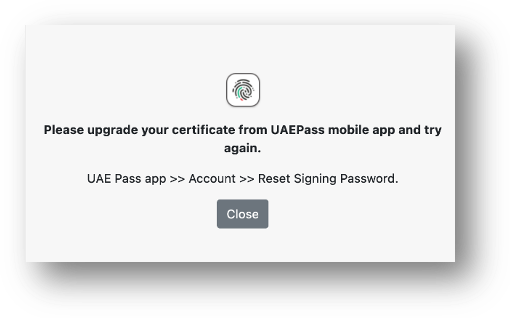
This message is sent to signers who possess
an outdated certificate from UAE Pass. They need to follow these steps to
upgrade their certificate in UAE Pass: Steps • Open the UAE Pass Mobile App. • Navigate to the Account Tab. • Choose "Reset Signing
Password." Option for Facial Verification and set a new
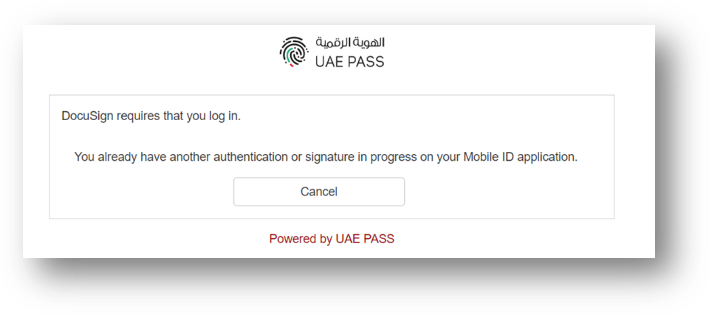
password. 4. Signer received the message “you have
another authentication" How to resolve this?
The signer may have attempted to sign from
multiple devices. It's recommended to close all open DocuSign and UAE Pass
browser windows and try again. If the issue persists, the sender can resend a
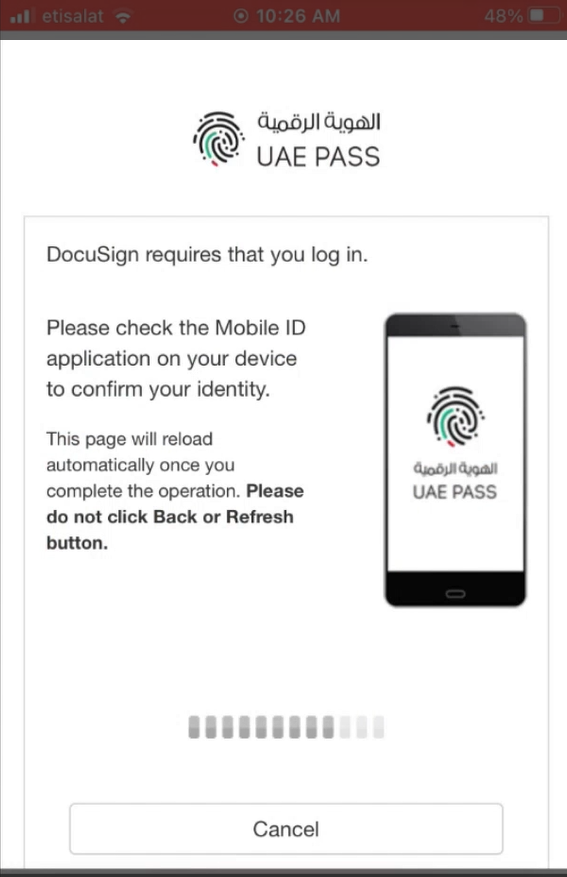
new envelope to prevent complications and save time 5. For certain signers using iPhone
devices the screen frozen at this window. It is not redirecting back to UAE
Pass or DocuSign Page. What should be done in this scenario?
Certain iPhone devices may encounter this
issue when background refresh is disabled. Therefore, we kindly request that
you inform signers that for a better signing experience, it's recommended to
use an alternate device for signing and a mobile device for UAE Pass
authentication. |